Learn, practice, and play Morse, right on the device.
MorseTrainer turns a Waveshare ESP32-S3 touchscreen into a standalone CW practice station. Plug in your paddle or straight key. No computer, no phone, no internet.
Overview
Everything runs on the device itself: keyer, decoder, sidetone, games, and a guided course that teaches Morse from zero. Source code and releases live at github.com/Hex4rts/Morsetrainer.
Iambic A, Iambic B, and an adaptive Straight Key that learns your personal timing
Falling Letters, Callsign Rush, Morse Trace with LEARN mode, QSO Simulator, CW Essentials, Morse Memory
5-tab interface on a 320×240 IPS display
Drop a firmware file on the SD card, reboot, done
A printable enclosure for the Waveshare board, free on Thingiverse
Hardware
| Component | Detail |
|---|---|
| Board | Waveshare ESP32-S3-Touch-LCD-2.8 (16MB flash, OPI PSRAM). Both revisions are supported: V1 (CST328 touch) and V2 (CST3530 touch). The firmware detects which one it's running on at boot. |
| Dit paddle | GPIO 15 (active LOW, internal pullup) |
| Dah paddle | GPIO 18 (active LOW, internal pullup) |
| NeoPixels | WS2812 strip on GPIO 43, count adjustable 1–60 in settings |
| Audio | I2S DAC (BCLK=48, LRC=38, DOUT=47) |
| SD card | 4-bit SDMMC for scores, progress, and settings backup |
| Case | 3D printable enclosure, see 3D Printed Case below |
3D Printed Case
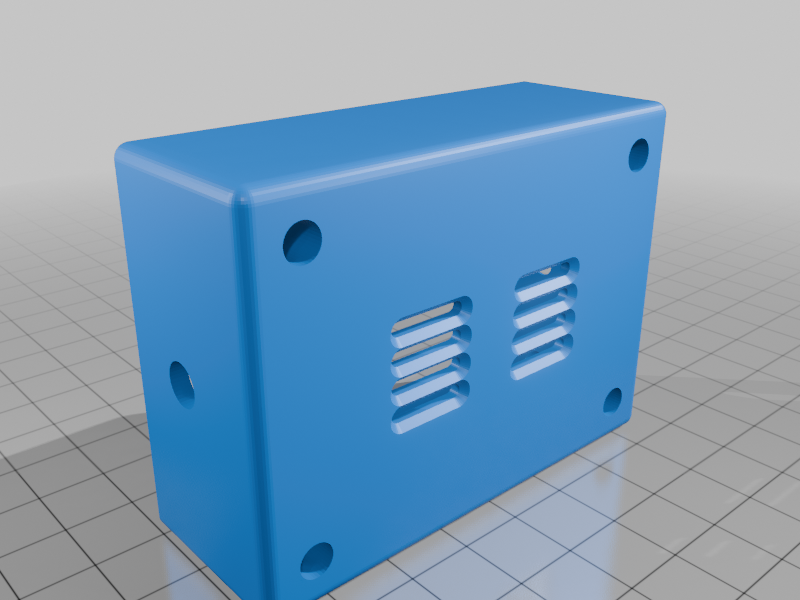
A printable enclosure designed for the Waveshare ESP32-S3-Touch-LCD-2.8, made specifically for MorseTrainer. The screw-mounted back has a grille so the sidetone speaker comes through clearly.
The STL files are free on Thingiverse. Print it, drop the board in, and your trainer is ready for the shack desk.
Get the case on ThingiverseInterface
Five tabs along the top of the screen: HOME, KEY, OPS, CFG, and NET. Tap a tab label to switch. The content area doesn't swipe, so adjusting a slider never flips you to another tab by accident.
HOME · operating screen
As you key, colored bars appear under the tab bar showing each element in real time: blue dits and amber dahs in iambic mode; in straight-key mode the bars are green and their width matches exactly how long you held the key. A red TX dot in the corner lights while you're sending.
The decoded text area fills the middle, with a CLR button to wipe it. Three cards at the bottom show your WPM, keyer mode, and callsign.
KEY · speed and keying
The big number is your WPM with the equivalent dit length next to it (“dot = 60 ms”); the + and − buttons adjust it from 5 to 60 WPM. Below that, three buttons select Iambic A, Iambic B, or Straight Key; the active mode is filled green.
Two more controls at the bottom:
| Control | What it does |
|---|---|
| PADDLE ASSIGNMENT | Tap to swap which paddle is dit and which is dah (“DIT=LEFT DAH=RIGHT” ↔ “DIT=RIGHT DAH=LEFT”) |
| STRAIGHT KEY TIMING | Tap to switch between AUTO (adaptive), where the device learns your dit length as you key, and WPM-BASED, where the dit/dah threshold comes from the WPM setting above |
OPS · games menu
Six game cards in a grid, each showing the name, a one-line description, and your best score. Tap a card to play; every game has an EXIT button to come back here.
CFG · settings
Every device setting in one scrollable list. Changes save automatically a few seconds after you stop adjusting.
| Setting | What it does |
|---|---|
| CALL | Your callsign (up to 11 chars). Tap to edit with the on-screen keyboard. |
| VOLUME | Sidetone volume |
| TONE | Sidetone frequency, 200–1200 Hz |
| LIGHT | Screen backlight brightness |
| FLIP | Rotate the display 180° for upside-down mounting |
| LED | LED effect: 25 modes (see LED Modes) |
| LEDs | Number of NeoPixels in your strip (1–60) |
| KEY BRT | Brightness of key-press flashes |
| BG BRT | Brightness of the background animation |
| COLOR | Ambient color for the color-based LED modes (7 presets) |
| BACKUP / RESTORE | Save all settings to the SD card / load them back |
| RESET | Factory reset: all settings back to defaults |
| RESET SCORES | Clears all game high scores and LEARN progress. Two-step: first tap shows CONFIRM?, second tap wipes. |
If flipping makes touch unusable, hold both paddles while powering on to force normal orientation.
NET · WiFi
Turn WiFi on or off, enter your network name and password (stored on the SD card), and watch the connection status and IP. The LEADERBOARD and UPLOAD buttons are wired for the upcoming online leaderboard.
Games
All six games are launched from the OPS tab and save their scores to the SD card. Every game has an EXIT button.
Falling Letters
Letters fall from the top of the screen. Key the correct Morse to destroy each one before it reaches the danger zone. Speed rises with each level, the full A–Z alphabet is used, and if two identical letters are on screen the lowest one is destroyed first.
Beginner: letter + its Morse hint shown. Expert: letter only.
Callsign Rush
A random callsign appears. Send it back as fast as you can. Callsigns use realistic prefixes from around the world.
Beginner: shown with visuals and audio, no timer. Intermediate: shown with audio, 12 s timer. Expert: audio only, 12 s timer.
Morse Trace
The device presents a letter; you key it back and it checks your pattern. Four levels: LEARN (the guided course below), Beginner, Intermediate, Expert.
QSO Simulator
Practice realistic CW contacts: the device plays an incoming transmission, you send the appropriate reply. Three difficulty levels × three complexity levels (simple exchange, RST report, full QSO) = 9 combinations.
CW Essentials
Three practice modes in one game:
| Mode | How it works |
|---|---|
| MY CALLSIGN | Builds your callsign letter by letter: 3 correct in a row adds the next letter, until you send the whole thing from muscle memory. |
| PHRASES · GUIDED | A CW phrase appears with its meaning (“QSL” with “Acknowledged”), the device plays it first, you key it back. |
| PHRASES · PRACTICE | Same phrases and meanings but no audio; key them from memory. |
The phrase pool covers Q-codes (QSL, QRT, QRS, QRZ, QTH, QRM, QRN, QSB), prosigns (AR, SK, BT, K), common exchanges (CQ, DE, 73, 88, TU, R, RST), and greetings (GM, GA, GE), always with the meaning shown, so you learn what you're sending.
Morse Memory
Simon says, for CW. The device plays a growing sequence of letters by ear; each round appends one more random letter and replays the whole sequence, and you key it back from the start. One wrong letter ends the run; the score reflects how long a sequence you can hold.
Beginner: the sequence is shown while it plays. Intermediate: audio only, your input shown. Expert: audio only, input hidden, fully blind until the verdict.
LEARN mode
Inside Morse Trace, LEARN teaches the code from scratch, one character at a time, using a drill-and-recall cycle.
Learning order: E T I A N M S U R W D K G O H V F L P J B X C Z Y Q 0-9
Drill. Each new letter is shown, played, and drawn as bars; you copy it with full guidance, four times.
Recall. After your first three letters, recall rounds begin: the letter appears with no sound and no bars. Three tries; fail all three and it goes back to drilling.
Advance. Three correct recalls in a row introduces the next letter. Drills and recalls alternate so old letters stay fresh.
Position, drill counters, and learned letters live on the SD card, so you can power off anytime and resume where you left off.
Keyer Modes
| Mode | Behavior |
|---|---|
| Iambic A | Hold both paddles for alternating dits and dahs; release both and it stops after the current element. Timing follows the WPM setting. |
| Iambic B | Like A, but releasing during an element still appends the opposite element, the “squeeze and release” style many operators prefer. |
| Straight Key | Either paddle is a simple on/off key. With AUTO timing (default, on the KEY tab) the device learns your dit length, detects character boundaries, and inserts spaces from how you actually key, no WPM needed. Switch to WPM-BASED to derive the dit/dah threshold from the WPM setting instead. |
In games, the WPM setting also controls how fast the device sends Morse to you.
LED Modes
The NeoPixel strip has 25 selectable effects. Two independent brightness sliders separate the key-press flash from the background animation, and every mode except OFF still flashes on each key press. Color-based modes use the ambient color you pick in CFG.
| Mode | What it does |
|---|---|
| OFF | Completely dark, no response at all |
| KEY FLASH | Dark when idle, flashes on each key press: blue/amber for iambic dit/dah, green for straight key |
| WPM METER | Your current speed as a bar graph across the strip |
| STEADY | Solid glow in the ambient color |
| BREATHE | Ambient color slowly pulsing |
| STARFIELD | Random pixels twinkle briefly |
| CHASE | A tail of light runs around the strip |
| RAINBOW | Continuous hue cycle across all LEDs |
Web Flasher Easiest
Flash a brand-new ESP32-S3 directly from your browser. No Python, no Arduino IDE, no command line. One firmware covers both board revisions.
Works: Chrome, Edge, Opera (desktop). Won't: Firefox, Safari, mobile. Web Serial only exists in Chromium desktop browsers.
Many USB-C cables are charge-only. Use one that carries data or the board won't enumerate.
Usually automatic. On Windows with no COM port, install CP210x or CH340 for your board's USB-serial chip.
Click FLASH MORSETRAINER above and pick the board's serial port in the popup.
Wait ~30 seconds without unplugging. The device reboots into MorseTrainer when done.
Hold the BOOT button while plugging in USB, wait a second, release, then click Flash again.
OTA Update via SD Card Existing devices
Already running MorseTrainer? Download the firmware, drop it on the SD card, reboot. No computer needed at the device.
Download firmware.bin above and keep the filename exactly as is.
Copy it to the root of the SD card (not inside any folder).
Insert the card and power on. The device flashes it on boot and renames it to firmware.done so it won't re-flash. Total time ~20 seconds.
OTA needs the custom partition scheme. The Web Flasher sets it up automatically; if your first install used “Huge APP”, re-flash once via the Web Flasher first.
Manual Install
With esptool (command line)
Install esptool (needs Python):
Merged binary (single file, simplest):
Replace COM3 with your port (Linux: usually /dev/ttyACM0).
Separate files:
Compile from source
All files live at github.com/Hex4rts/Morsetrainer.
Install Arduino IDE with ESP32 board support (esp32 by Espressif Systems, Board Manager).
Install libraries: LVGL 9.x and Adafruit NeoPixel via Library Manager.
Copy lv_conf.h next to (not inside) the lvgl library folder:
Extract the project into Arduino/MorseTrainer/ with the .ino, all .h/.cpp files, and partitions.csv in one folder.
Board settings (Tools menu):
Connect via USB and upload.
The included partitions.csv creates the two app slots OTA needs. With “Huge APP” the firmware runs, but SD-card updates won't. You'd have to re-flash over USB to fix it.
SD Card Files
Created by the device as needed; deleting one just resets that data.
| File | Purpose |
|---|---|
/firmware.bin | Firmware update, consumed on boot and renamed to .done |
/mt_settings.txt | Settings backup (BACKUP button in CFG) |
/mt_wifi.txt | WiFi network name and password |
/trainer2.txt | LEARN mode progress |
/koch.txt | Koch lesson progress |
/scores/*.txt | High scores (falling, callrush, trace, qso, phrases, memory) |
Changelog
Loading changelog…